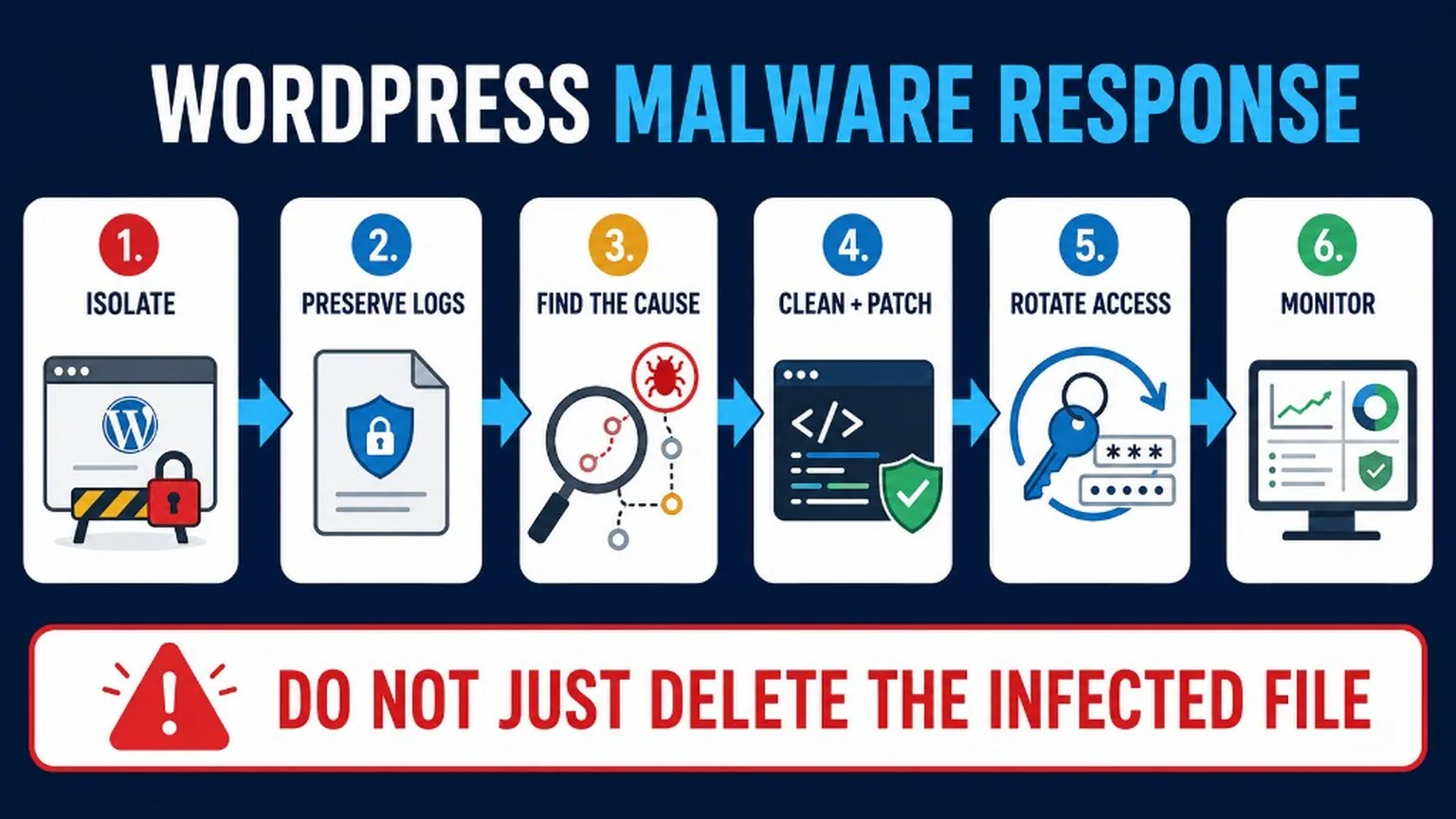
Malware and viruses are a serious threat to the security of your WordPress site. These malicious programs can cause damage to your site, steal sensitive information from your visitors, and negatively impact your site’s performance. It is essential to learn how to identify and remove malware and viruses to keep your website secure.
Identifying malware and viruses:
- Slow website performance: One of the most common signs that your website may have been infected with malware or a virus is a significant decrease in its performance. If your site is suddenly taking longer to load or is experiencing other performance issues, this could be an indication of a problem.
- Unusual pop-up ads or redirects: Another sign of a potential malware or virus infection is the presence of unexpected pop-up ads or redirects when visiting your site. These can be caused by malware or viruses that have been injected into your site’s code and are being used to display ads or redirect visitors to other sites.
- Unfamiliar links or code on your website: If you notice any links or code on your site that you don’t recognize, it’s important to investigate further. These could be indications that malware or viruses have been added to your site’s files, which could be compromising its security.
- Emails or messages containing suspicious attachments or links: Some types of malware or viruses can spread via email attachments or links. If you receive any emails or messages containing suspicious attachments or links, it’s important to be cautious and not open them.
It’s essential to take action immediately if you suspect that your site has been infected with malware or a virus. The longer you wait, the more damage that can be done, both to your website and your visitors’ information. Remember that the early detection is key, so it is important to be vigilant and keep monitoring your website.
Removing malware and viruses:
Step 1: Run a full scan of your website using security software.
This is the first step in identifying and removing malware or viruses from your site. There are many security software available for WordPress such as Wordfence, Sucuri. Choose the one that fits your need. Once you have installed the software, run a full scan of your site to identify any potential threats. This can include malware, viruses, and other types of malicious code.
Step 2: Disconnect your site from the internet to prevent further infection.
Once you’ve identified that your site has been infected, it’s important to immediately disconnect it from the internet to prevent the malware or virus from spreading. This can be done by disabling the site’s FTP and/or SSH access, and also disabling the site’s ability to connect to the internet. This will prevent the malware or virus from spreading to other parts of your site or to other sites on the same server.
Step 3: Remove any suspicious or unfamiliar files or code.
Now that your site is disconnected, you can safely remove any suspicious or unfamiliar files or code that have been identified by the security software. This can include malware, viruses, and other types of malicious code. It’s important to ensure that you remove all traces of the malware or virus, as well as any backdoors or other malicious code that may have been added to your site.
Step 4: Review your backups to restore your website to a clean version.
After removing the malware or virus, it’s important to review your backups to restore your website to a clean version. This will ensure that your site is completely free of malware or viruses, and will also help to prevent future infections.
It is important to note that removing malware or viruses from your WordPress site can be a complex task and require a lot of expertise. That’s why it is highly recommended that you seek help from a professional website security expert to ensure that all traces of malware or viruses have been removed from your site and take the necessary steps to secure your website for future attacks. Remember, prevention is better than cure.
Manual cleaning of engine from malicious code
Learn how to remove malware from WordPress by identifying and manually cleaning malicious code in your engine, using practical steps to regain full control of your site and prevent future infections.
While using security software and getting help from a professional is a recommended solution, it’s good to know how to manually clean your site from malicious code. This process requires a certain level of technical expertise and it is recommended to make a full backup of your website before proceeding.
Manual cleaning process:
Step 1: Access your website files via FTP or file manager in your hosting account.
Step 2: Look for suspicious or unfamiliar files and folders. Commonly malware will have random names or encrypted code.
Step 3: Check your website’s core files such as wp-config.php, functions.php and header.php for any suspicious code injections.
Step 4: Remove manualy any malicious code or files that you find.
Step 5: Reupload Core Files and Plugins
Step 6: Change all the website’s and hosting’s passwords.
It’s important to note that manual cleaning process can be very time-consuming and requires a good understanding of the website’s file structure. Also, it’s highly recommended to compare your files with a clean version of the same version of WordPress, theme and plugins you use. In case of any doubts or difficulties with manual cleaning it’s always better to rely on professionals and use specialized software to secure your website.
After manually cleaning your site from malicious code, it is important to ensure that all of your core files and plugins are from a trusted and official source. This can help to prevent your site from being infected with malware or viruses again in the future.
Reuploading Core Files:
Step 1: Download a fresh copy of the same version of WordPress that you are currently using from the official WordPress website.
Step 2: Delete all of the core files on your website, except for the wp-content folder and the wp-config.php file.
Step 3: Upload the new core files to your website, replacing the old ones.
Downloading Plugins from the Official Source:
Step 1: Go to the official WordPress plugin repository.
Step 2: Download the latest version of each plugin that you are currently using on your site.
Step 3: Delete the current versions of the plugins from your website.
Step 4: Upload the new versions of the plugins to your website.
By reuploading core files and downloading plugins from the official source, you can help to ensure that your site is using the most up-to-date and secure versions of these files. Remember also, that is always good to check if all the plugins you are using are still updated and supported, as unmaintained plugins can also pose a security risk for the website.
Checking and Cleaning Your Database:
In addition to checking and cleaning your website’s files, it’s also important to check and clean your database for any malicious code.
Checking the Database:
Step 1: Access your website’s database using a tool such as phpMyAdmin.
Step 2: Check for any tables or entries that contain suspicious or unfamiliar names or code.
Step 3: Check for any links or code injections in the post and page content, comments, and other data stored in the database.
Cleaning the Database:
Step 1: Use the ‘search and replace’ function in phpMyAdmin to search for and remove any suspicious or unfamiliar code.
Step 2: Delete any tables or entries that contain suspicious or unfamiliar names or code.
Step 3: Change all the database’s passwords.
Note: Cleaning the database can be a complex task and it’s recommend to make a backup of the database before proceeding. In case of any doubts or difficulties with manual cleaning, it’s always better to rely on professionals and use specialized software to secure your website.
Reviewing and Managing User Accounts:
One of the most common ways for hackers to gain access to a website is through compromised user accounts. It’s essential to review and manage your website’s user accounts to ensure that only authorized users have access to your site.
Reviewing User Accounts:
Step 1: Go to the ‘Users’ section in your WordPress dashboard.
Step 2: Check for any suspicious or unfamiliar user accounts.
Step 3: Review the details of each user account, including the username, email, and last login date.
Managing User Accounts:
Step 1: Delete any suspicious or unfamiliar user accounts.
Step 2: Change the passwords for all user accounts, especially for the administrator account.
Step 3: Limit the number of users with administrative access and use stronger passwords for these accounts.
Step 4: Regularly check and remove inactive or unused user accounts
Keep an eye on the user accounts and their permissions, as compromised accounts can be a common way for hackers to gain unauthorized access to the website. By regularly reviewing and managing your user accounts, you can help to reduce the risk of your site being hacked.
Preventing malware and viruses:
Maintaining continuous security practices is essential to keep your WordPress site free from malware and viruses, preventing reinfection after cleanup. This section highlights key steps to establish lasting protection.
Step 1: Regularly updating your WordPress installation, themes, and plugins can help to ensure that any known security vulnerabilities are patched, making it harder for malware or viruses to exploit them.
Step 2: Keeping a backup of your site allows you to quickly and easily restore your site to a clean version in case of an infection. It is highly recommended that you schedule regular backups and keep them in a safe location.
Step 3: Using a reliable security plugin can help to protect your site against a wide range of security threats, including malware and viruses. Some examples of popular security plugins include iThemes Security, Sucuri Security, and Wordfence.
Step 4: Monitoring your site regularly for signs of malware or viruses can help you to detect and respond to an infection quickly. This can include regularly checking your site’s logs and auditing activity, as well as running regular scans using security software.
Step 5: Regularly checking file permissions and configure your web-server properly to avoid file-inclusion vulnerabilities
Step 6: Keeping your Operating System and software up to date for example, servers like Apache and PHP.
It is important to note that preventing malware and viruses is an ongoing process, and it is necessary to continuously monitor and update your site’s security. Keep in mind that malware and viruses can cause serious damage to your site, so it is important to take them seriously and take all necessary steps to keep your site secure.
Implementation checklist for deep cleaning WordPress malware
Start by scanning your WordPress site for malware, then proceed with backing up your data, removing infected files, updating all software, and strengthening security settings to prevent future attacks.
For manual malware removal, consider using tools like Wordfence, Sucuri SiteCheck, or MalCare to scan your WordPress files and database for suspicious code. Begin by backing up your entire site, then review recently modified files and suspicious PHP scripts. Pay special attention to wp-config.php and .htaccess files, as these are common targets for malware injections. Remove any unfamiliar code snippets or files, and reset all passwords including database, FTP, and WordPress admin accounts. Additionally, disable all plugins and themes temporarily to isolate the infection source before reactivating them one by one. This hands-on approach, combined with automated scanning, enhances the thoroughness of your malware cleanup process.
- Backup your entire WordPress site including files and database before starting any cleaning process.
- Scan your website using a reputable security plugin or external malware scanner to identify infected files.
- Manually inspect and clean suspicious files by accessing your site via FTP or hosting file manager; remove or replace malicious code found in themes, plugins, and core files.
- Change all WordPress passwords (admin, FTP, database) to strong, unique passwords immediately after cleaning.
- Update WordPress core, themes, and plugins to their latest versions to patch known vulnerabilities.
- Install a security plugin that offers real-time protection and malware scanning to prevent future infections.
- Harden your WordPress installation by disabling file editing in the dashboard (
define('DISALLOW_FILE_EDIT', true);) and setting appropriate file permissions.
Related on WP-Dude
For comprehensive WordPress security and maintenance, consider these related guides that complement malware removal.
Frequently Asked Questions (FAQ)
Removing malware from your WordPress site is crucial to maintain security and performance. Below are practical questions and answers to guide you through the deep cleaning process effectively.
How can I manually remove malware from my WordPress site?
Start by backing up your entire site. Then, scan your files using security plugins like Wordfence or Sucuri to identify infected files. Manually delete or replace malicious code in core files, themes, and plugins. Finally, change all passwords and update WordPress, themes, and plugins to their latest versions.
What are the first steps to take when I suspect malware on my WordPress website?
Immediately put your site into maintenance mode to prevent further damage. Backup your site and database before making changes. Use a trusted malware scanner plugin to detect infections and review server logs for unusual activity.
How do I prevent malware infections on my WordPress site after cleaning?
Keep WordPress core, themes, and plugins updated regularly. Use strong, unique passwords and enable two-factor authentication. Limit login attempts and install a reputable security plugin to monitor and block suspicious activity.
Is there a checklist I can follow for deep cleaning WordPress malware?
Yes, follow these steps: 1) Backup your site; 2) Scan and identify malware; 3) Remove infected files or replace them; 4) Change all passwords; 5) Update all software; 6) Harden security settings; 7) Monitor your site continuously for suspicious activity.
How quickly can I remove malware from my WordPress site?
The speed depends on the infection extent, but you can start cleaning immediately by backing up and scanning your site. With proper tools and steps, basic malware removal can take a few hours. For complex infections, consider professional help to avoid missing hidden threats.
What tools are recommended for cleaning malware from a WordPress website?
Use security plugins like Wordfence, Sucuri, or MalCare for scanning and cleaning malware. Additionally, tools like WP-CLI can help with manual file inspections. Always verify with multiple scanners to ensure thorough cleaning.