Verified: July 2026. A backup you have never restored is a hope, not a plan. This guide covers what to back up, the 3-2-1 rule, WooCommerce consistency, and how to verify restores.
Why backups matter
Backups are how you survive ransomware-style defacement, bad updates, host failure, and human error.
Security tools reduce risk; backups limit damage when risk becomes reality. Pair them with the rest of the stack in Fighting Back Against WordPress Attacks and the cleanup path in Deep Cleaning.
Key Takeaways
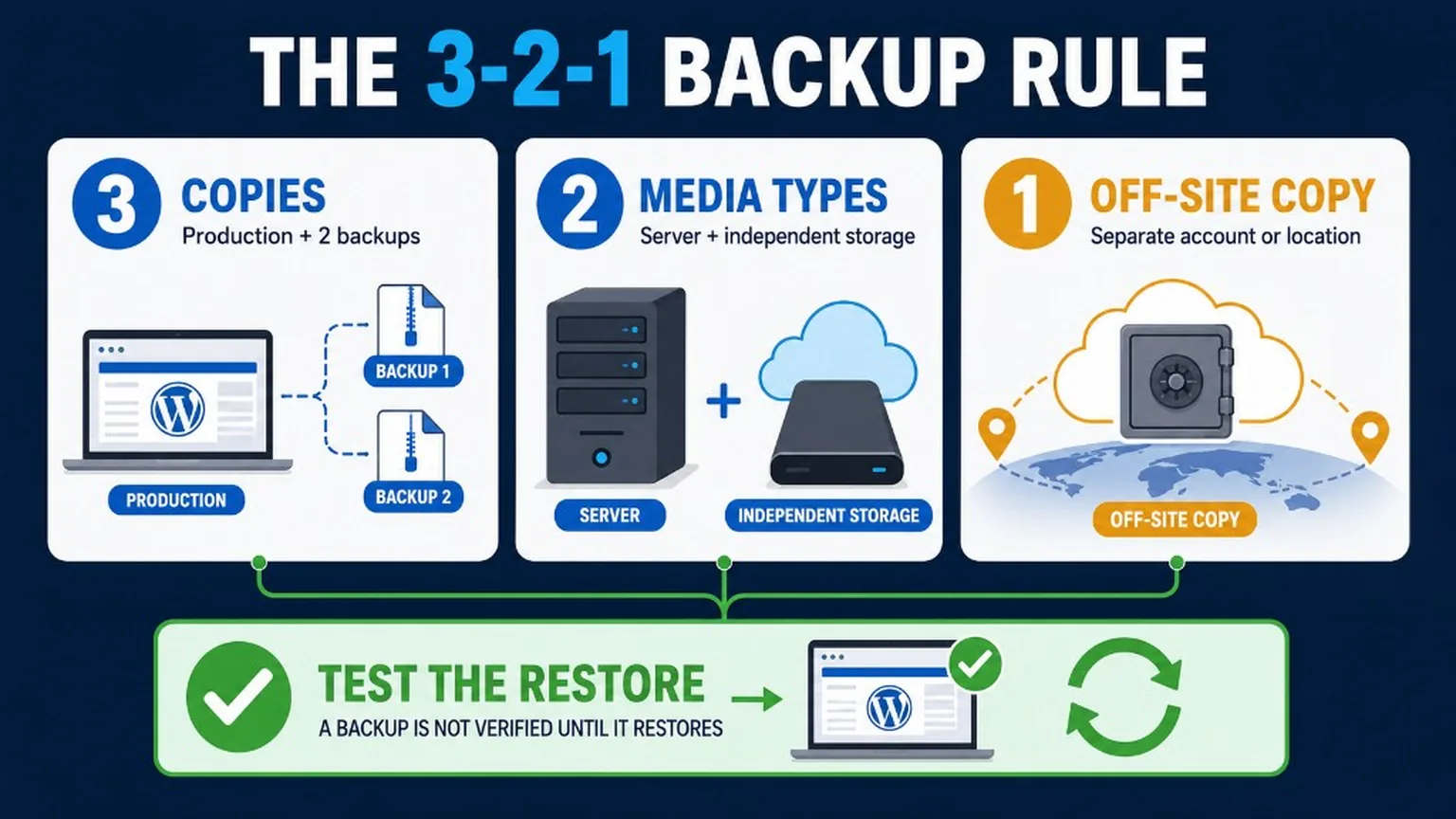
- Follow 3-2-1: 3 copies, 2 different media/systems, 1 off-site.
- Back up more than
uploadsor more than the database – you need both, plus config you cannot recreate from memory. - Encrypt sensitive backups, set retention, prefer immutable or delete-protected storage where available.
- Run restore tests on a schedule; document RTO/RPO expectations for your business.
- WooCommerce needs consistent file+DB snapshots and a plan for orders placed during restore.
The 3-2-1 rule (and extras that matter in 2026)
Copies that all live on the same VPS fail together.
- 3 copies – production data + at least two backups.
- 2 systems – e.g. host snapshot + object storage / another provider.
- 1 off-site – outside the primary datacenter and account when possible.
- Encryption – especially for backups that contain customer PII or payment metadata.
- Retention – daily/weekly/monthly tiers so you can roll past delayed malware discovery.
- Immutability / delete protection – object-lock or MFA-delete so ransomware or a stolen panel key cannot wipe every copy.
- Restore tests – quarterly at minimum; after every major stack change.
What to back up
Split the problem: application data vs infrastructure vs third parties.
- Files – WordPress core (or rebuild from package),
wp-content(themes, plugins, uploads, mu-plugins), custom code. - Database – full MySQL/MariaDB dump; include all tables for multisite.
- Server config – nginx/Apache vhosts, PHP-FPM pools, cron, TLS certs or ACME process notes, environment files.
- DNS – export zone records; document registrar and TTL strategy.
- Mail – if mailboxes are critical, they are a separate backup domain (not “the WP plugin”).
- Third-party – SaaS configs, payment webhooks, ESP audiences – note rebuild steps even when you cannot dump them.
Uploads alone are not a site. The database alone loses media and custom plugins. Both without server/DNS notes slow every recovery.
How to create backups
Pick a primary method and prove restore – do not collect five unverified tools.
Plugin-based
Popular options re-verified July 2026 via wordpress.org:
- UpdraftPlus (~3M+ installs, tested up to WP 7.0.2) – schedules, remote storage, common for small-mid sites.
- BackWPup (~500k+ installs, tested up to WP 7.0.2) – file+DB jobs to remote destinations.
Check: last update date, remote destinations, encryption, restore-to-new-host flow, and limits on large DBs/media. Premium vendors (e.g. BlogVault, ManageWP, host-native) may fit shops better – verify storage location and restore SLA yourself.
Host snapshots
Useful for full-server rollback. Confirm they are not the only copy, and that you can restore a single site without overwriting siblings.
Manual / WP-CLI
SFTP/SSH for files + wp db export or mysqldump. Good for controlled migrations (see migration guide) and forensic snapshots before malware work.
WooCommerce and live shops
Orders keep arriving while you restore – plan for consistency.
- Prefer atomic snapshots (files + DB from the same moment) or vendor tools that understand Woo tables.
- Before major updates: backup, then update on staging when possible.
- Incremental or near-real-time backups reduce order loss windows for high-volume stores.
- Restore runbook: put store in maintenance if needed, restore, replay or manually reconcile orders placed during the gap, verify webhooks and payment statuses.
- Never restore an old DB over a live shop without an order-reconciliation plan.
Restoring a backup
Practice on staging until the steps are boring.
- Create a new staging environment or temporary host.
- Restore files, then import DB (or follow the plugin’s restore wizard).
- Run search-replace for URL changes safely (serialized-aware tools / WP-CLI).
- Fix permissions, salts if this is post-incident, flush cache/object-cache, re-save permalinks.
- Smoke-test login, forms, checkout, cron, REST, media.
- Only then cut over production – with DNS TTL and rollback notes from your migration playbook.
Best practices
- Backup before every core/plugin/theme/PHP upgrade.
- Store off-site; do not leave the only zip inside
wp-contentpublicly reachable. - Monitor job success; failed silent backups are common.
- After malware, assume backups taken during infection may be dirty – keep older retention tiers.
- Document who can restore and how to reach them.
Implementation checklist
- 3-2-1 mapped for this site (where each copy lives).
- Files + DB (+ config notes) covered; retention set.
- Encryption / access control on remote storage.
- Restore test completed within the last 90 days (date recorded).
- Woo or membership order-gap procedure written if applicable.
- Alerts for backup job failures enabled.
Frequently Asked Questions (FAQ)
Operational FAQ for owners and teams – not a SERP rich-result promise.
How often should I back up my WordPress site?
At least daily for content sites that change often; more frequent or continuous for WooCommerce. Always immediately before updates. Retention should cover delayed malware discovery (weeks, not only yesterday).
What are the best methods to create a WordPress backup?
The best method is the one you have restored successfully: quality plugin to off-site storage, host snapshots plus off-site, or WP-CLI/manual with automation. Re-verify the tool against WP 7 and your DB size.
How do I restore my WordPress site from a backup?
Prefer restore to staging first, verify, then promote. Match the tool you used to create the backup; fix URLs carefully; smoke-test critical flows before DNS cutover.
What should I do immediately after restoring?
Flush caches, check login and forms, verify cron and mail, confirm SSL, scan for malware if the restore was incident-related, and rotate credentials if compromise was possible.
Can I automate WordPress backups?
Yes – and you should – but automation without failure alerts and restore tests creates false confidence.
Summary
Design backups for restore, not for checkbox compliance. Keep off-site copies, test them, and connect this practice to ongoing Maintenance and Security when the site is business-critical.